Import from other tools
Bring a Notion database or page, a ClickUp list, a Jira project, or a CSV into Snoze.
You can bring existing work into Snoze one item at a time: a Notion database or page, a ClickUp list, a Jira project, or a CSV file. Each becomes a normal Snoze database (or page) that you own outright.
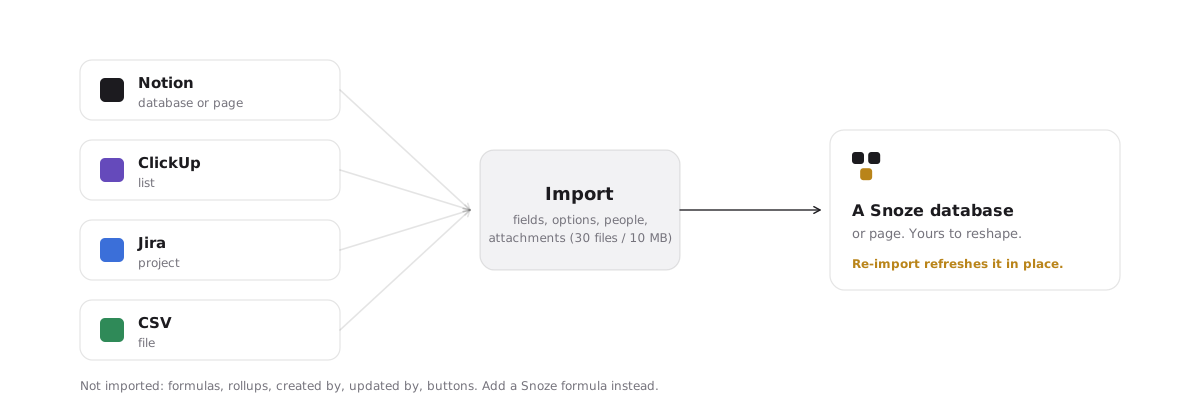
Import from Notion, ClickUp or Jira
- Connect the tool first under Workspace settings → Connected apps.
- Click New where you want the import to land (the sidebar or a folder) and choose Import from….
- Pick the provider, then search or browse for the item: a Notion database or page, a ClickUp list, or a Jira project.
- Confirm. Snoze creates the database or page and fills it.
What comes across
| From | Becomes | Fields kept |
|---|---|---|
| Notion database | Database with records | Text, long text, select, multi-select, date, people, files |
| Notion page | Page | Blocks, up to 200 per page |
| ClickUp list | Database with records | Status, priority, dates, assignees, tags, description, custom fields |
| Jira project | Database with records | Status, type, priority, labels, assignee, reporter, description, created and updated |
- Select options are recreated. Re-importing later adds new options without removing yours.
- People are matched to workspace members by email. Anyone not in the workspace is left blank.
- Attachments are copied into your workspace storage, up to 30 files or 10 MB per import.
- Related databases in Notion are followed two levels deep.
What does not
Computed fields (formula, rollup, created by, updated by, buttons) are not imported; add a Snoze formula instead. Relations whose target cannot be imported are skipped.
Importing again
Importing the same item a second time refreshes it in place rather than making a copy: records are matched by their source id, and a page’s body is replaced. That makes it safe to run an import early and again before you switch over.
The source stays connected only as long as you keep the app connected; the imported data is yours either way.
Import a CSV
Open a database’s data menu and choose Import CSV. Snoze reads the header row, guesses a field type per column (text, number, date, checkbox, select, person, long text), and lets you adjust before it creates the records.
Importing the same file again updates the rows it already created instead of duplicating them. A CSV import is a one-off: nothing stays connected.