Calendar
One calendar for your events, your connected Google or Outlook calendars, and any database with a date field.
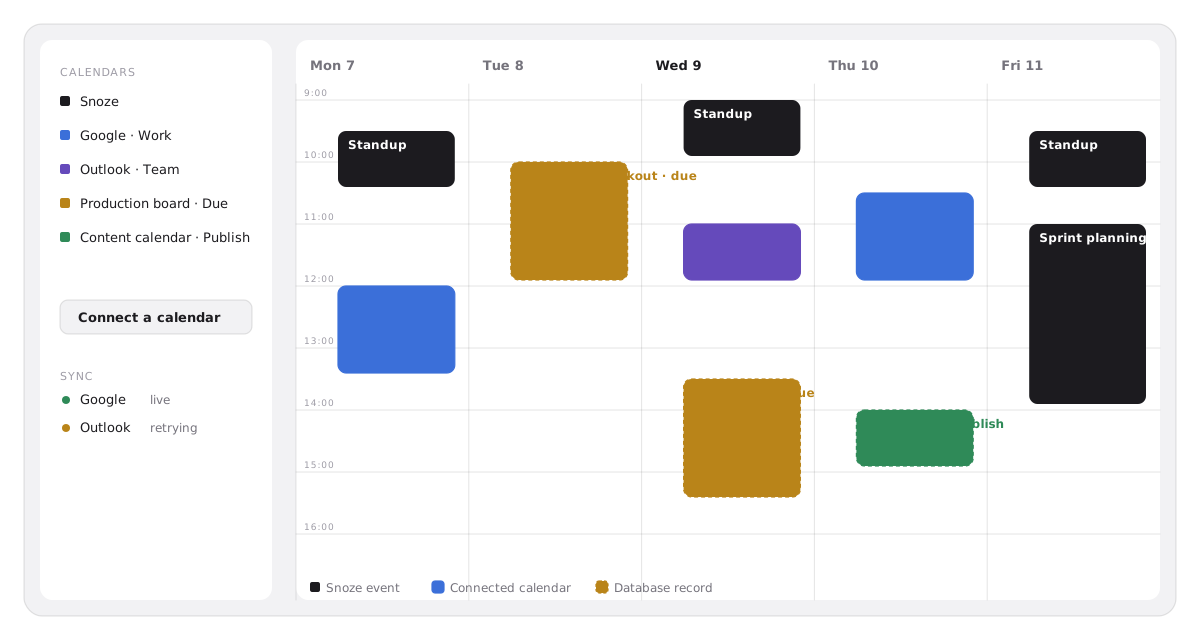
Calendar is a surface in the sidebar. It shows three kinds of things on one grid: events you create in Snoze, events from calendars you connect (Google Calendar or Outlook), and records from any database that has a date field. Drag any of them to reschedule.
Create an event
- Open Calendar from the sidebar and click +.
- Fill in the event. Give it a Title, pick which Calendar it belongs to, and set the time. Tick All day for a date without a time.
- Add detail if you want it. Recurrence (Does not repeat, Daily, Weekly, Monthly, Yearly), Location, Attendees, and a Conference URL.
- Create.
Events on the Snoze calendar save immediately. Events on a connected calendar show a syncing state until the provider confirms the write.
Times are stored in your time zone at the moment you create the event, so a 9:00 meeting stays at 9:00 wherever you open it.
Connect Google Calendar or Outlook
- In the calendar sidebar, click Connect a calendar. This opens Workspace settings → Connected apps.
- Sign in with Google Workspace or Microsoft 365 and allow calendar access.
- Your calendars appear under Calendars in the sidebar. Toggle each one on or off.
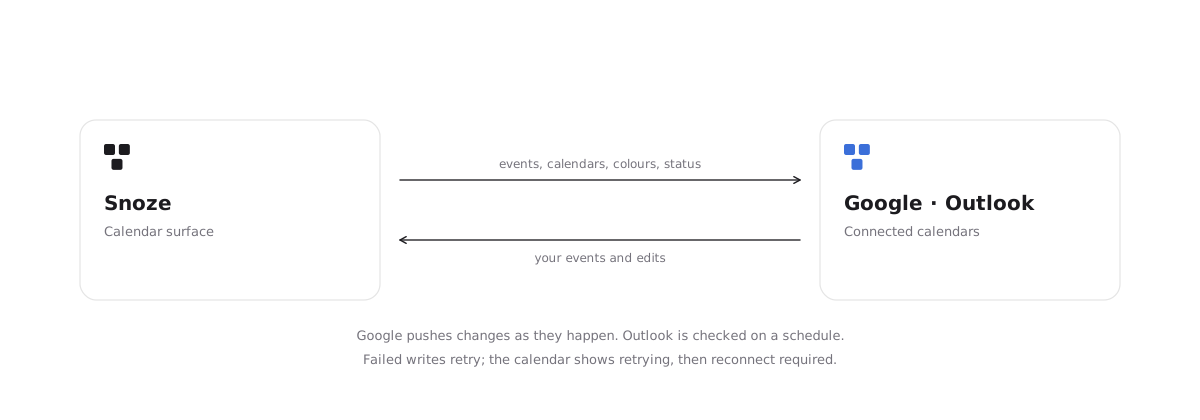
Sync runs both ways:
| Direction | What moves |
|---|---|
| Into Snoze | Calendar names and colours; events with title, description, location, times or all-day dates, recurrence, attendees, conference links, and status (confirmed, tentative, cancelled). |
| Out to the provider | Events you create or edit on a connected calendar: title, description, location, times, recurrence, and attendees. |
Google pushes changes to Snoze as they happen. Outlook is checked on a schedule. If a write to the provider fails, Snoze retries it; the calendar shows retrying until it lands, and reconnect required if the connection itself has lapsed.
Events marked private on the provider show as Busy with their details hidden.
Put a database on the calendar
Any database with a Date field can appear on the calendar.
- In the calendar sidebar, add the database as a source and choose which date field places each record. Add an End date field to show ranges.
- Records without a value in that field stay off the calendar.
- Dragging a record to a new day writes the new date back to the record, as long as you can edit it.
This is the same projection a database’s own calendar view uses; the difference is that the Calendar surface shows several databases and your events together.